Al utilizar este sitio, usted acepta la Privacy Policy y los Terms of use.
Accept
Plantillas gratuitas de Google Slides y PowerPoint para tus presentaciones Plantillas gratuitas de Google Slides y PowerPoint para tus presentaciones
  • By color
    • Yellow color
    • Blue color
    • White color
    • Sky blue color
    • Colorful
    • Fuchsia color
    • Gray color
    • Brown color
    • Purple
    • Orange color
    • Black color
    • Purple color
    • Red color
    • Pink color
    • Green color
  • All Templates
  • Infographics
    • Diagrams
    • PPT charts
    • Infographic tables
    • Timelines
    • Process infographics
  • Professionals
  • Creative
  • Modern
  • en_USEnglish
    • es_ESSpanish
Click here to help us with your donation.
Notification
Change the font sizeAa
PPTPPT
Search
  • Templates by Color
    • Yellow
    • Blue
    • Beige
    • White
    • Light Blue
    • Colorful
    • Fuchsia
    • Gray
    • Brown
    • Purple
    • Orange
    • Black
    • Lilac
    • Red
    • Pink
    • Turquoise
    • Green
  • All Templates
    • Professionals
    • Education
    • Creative
  • My Saved Templates
  • en_USEnglish
    • es_ESSpanish
Follow us
  • Home
  • Contact
  • Privacy Policy
  • Terms and Conditions
Plantillaspowerpoint.org | All rights reserved 2025
PPT > Tutorials > How to change theme colors? Guide for Google Slides and PPT
Tutorials

How to change theme colors? Guide for Google Slides and PPT

Level Zero
By
Level Zero
ByLevel Zero
Follow
Última actualización: 2025/10/27
Share

Don't know how to change the colors of the theme? When we create our templates we try to use colors that go hand in hand with the theme. We do this so that you can personalize your presentations with the colors you choose. For that reason today we will teach you how to change the colors of a PowerPoint template and in Google Slides.

How to change the colors of a template in Google Slides?

#1. Click Slide > Edit Theme (formerly known as Master)

#2. Click on 'Colors'.

#3. You will see a panel open on the right.

#4. Click 'Choose a theme color' and select any of the colors from the dropdown menu.

¿Cómo cambio los colores de la tema? Guía para Google Slides y PPT

#5. Here you can type/paste a HEX code (if you are not sure which color palette to use, you can check out Coolors and get the HEX codes there). Or you can select any of the default colors provided by Google Slides.

¿Cómo cambio los colores de la tema? Guía para Google Slides y PPT

#6. Repeat this step for each theme color. Once that's done, close the topic and you're done!

Your presentation will have a new look in just a few clicks!

How to change the colors of a template in PowerPoint?

#1. Click View > Slide Master

¿Cómo cambio los colores de la tema? Guía para Google Slides y PPT

#2. Click on 'Colors' and a drop down menu will open. Here you can choose whether you want to use one of the color palettes provided by Microsoft (Office, Office 2007 – 2010, Blue, Green, etc.) or use your own custom colors (Custom Colors…)

¿Cómo cambio los colores de la tema? Guía para Google Slides y PPT

#3. If you choose to use one of the palettes that come with the PowerPoint presentation, simply hover over each one to see a preview. Once you’ve decided which one you like best, simply click on it.

Close View and that's it!

Now, if you choose to use your own custom color palette, click on Colors and select ‘Custom Colors…’ a pop-up window will open.
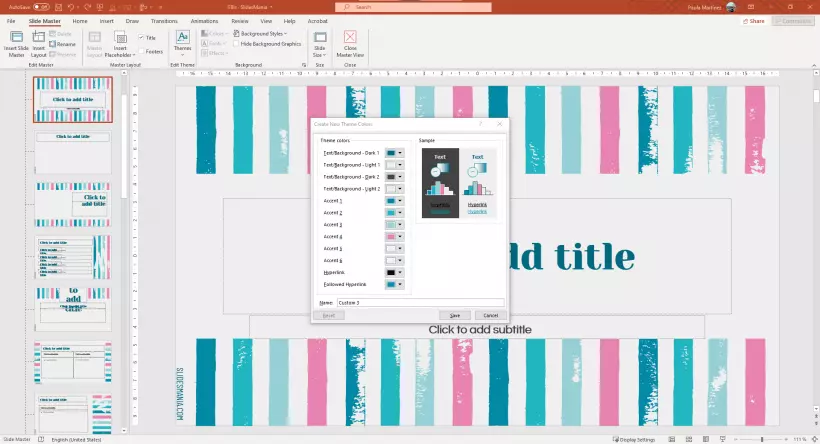
¿Cómo cambio los colores de la tema? Guía para Google Slides y PPT

Click on any of the theme colors and a menu will open. Here you can choose to change it to any of the given theme colors, any of the standard colors, or any color you like. To access this last option, click on ‘More colors…’
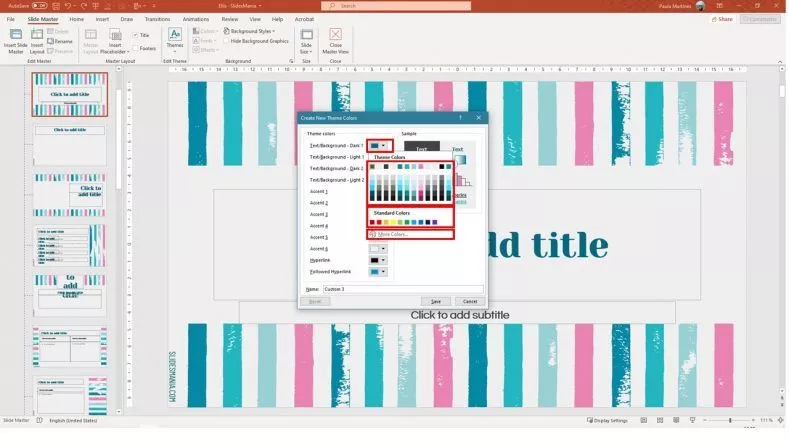
¿Cómo cambio los colores de la tema? Guía para Google Slides y PPT

Here you can choose between Standard or Custom. If you choose 'Standard', simply click on the color you want and click OK, and if you choose 'Custom', you can select any of the colors and a specific hue, or use the RGB selectors or type/paste a HEX code . When you're done, click OK.
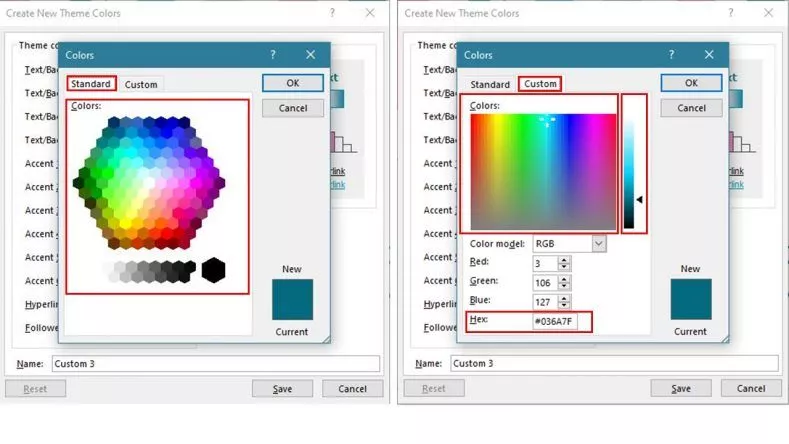
¿Cómo cambio los colores de la tema? Guía para Google Slides y PPT

Repeat this for each color you want to change. Once this is done, close the view and you are all set!


No comments No comments

Leave a Reply Cancel reply

Your email address will not be published. Required fields are marked *

You might also like

Principales atajos de PowerPoint para un trabajo profesional

Top PowerPoint shortcuts for professional work

By Level Zero
Crear Plantillas en PowerPoint

Create Templates in PowerPoint

By Level Zero
Cómo descargar plantillas de PowerPoint

How to download PowerPoint templates

By Level Zero

Subscribe and transform your presentations

Join our community and receive the best professional, creative, and 100% editable PowerPoint templates straight to your inbox. Save time, impress your audience, and stay up-to-date with exclusive new designs every week. Sign up for free and take your presentations to the next level!

Explore more topics

  • Infographics
  • Diagrams
  • Professionals
  • Timelines
  • Process infographics
  • Education
  • White
  • Creative
  • Modern
  • Canva
  • Blue
  • Green
  • PPT charts
  • Colorful
  • Elegant
Plantillas gratuitas de Google Slides y PowerPoint para tus presentaciones Plantillas gratuitas de Google Slides y PowerPoint para tus presentaciones

PowerPoint Templates | Professional designs to make your presentations stand out. Download, edit, and impress your audience in minutes.

  • Home
  • Contact
  • Privacy Policy
  • Terms and Conditions
Facebook Twitter Youtube Pinterest

PowerPointTemplates.org | All rights reserved 2025

Welcome Back!

Sign in to your account

Nombre de usuario o dirección de correo electrónico
Password

¿Perdiste tu contraseña?