Creating PowerPoint templates doesn't have to be complicated. By following these steps and using design tools, you will be able to generate professional templates that stand out your content and simplify creating impactful presentations. Let your creativity fly and start designing custom templates for your next PowerPoint presentations!
How to use a template
1. Click on the File tab.

2. Click on the New button.
3. Search for a template type or use the categories to browse.
4. Select a template.
A screen appears showing a description of the template and the file size. Use the arrows below the preview image to see some of the different slide layouts available in the template.

5. Click Create.

The template is downloaded and is ready to fill out with information.
Create a Custom Template
If you have an existing presentation that is modified regularly, you can save it as a template.
1. Open the presentation.
2. Click on the File tab.

3. Click Save As.
4. Click on Browse.

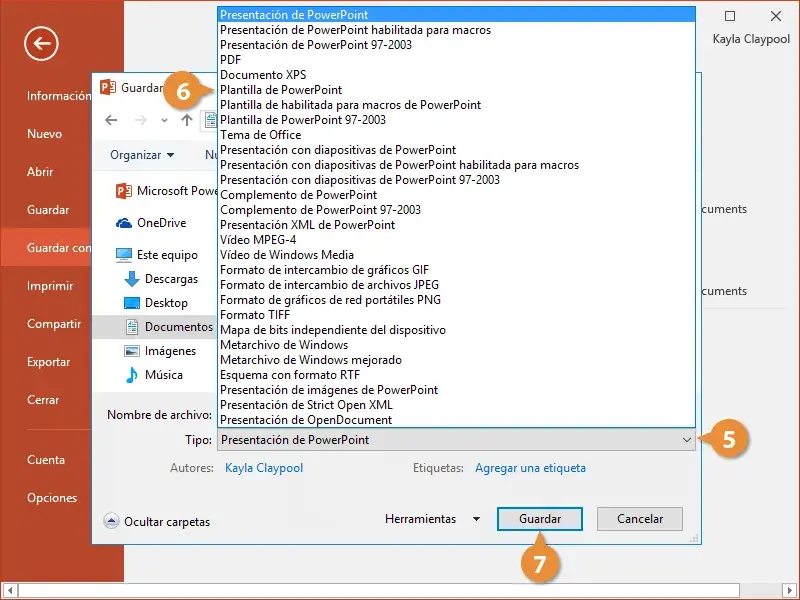
5. Click the Type list arrow.
6. Select PowerPoint Template.
The file will automatically be saved in the Office Custom Templates folder. You will need to leave it as the save location to access it as a PowerPoint template in the future.
7. Type a template name in the File Name field and click the Save button.
Use a Custom Template
1. Click on the File tab.
2. Select New.
3. Click Personal below the search bar.
4. Open the Custom Office Templates folder.

5. Select a custom template.
6. Click on Create.
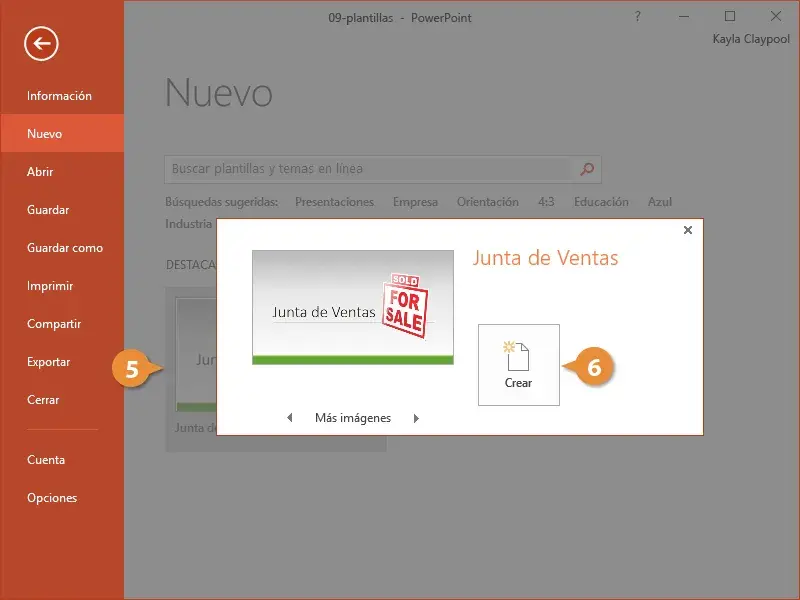
A new presentation is created based on the custom template. Create a presentation from a new template so that the original file will never be overwritten. Remember that you can create various PowerPoint templates quickly and easily to use in any project.