Don't know how to change the colors of the theme? When we create our templates we try to use colors that go hand in hand with the theme. We do this so that you can personalize your presentations with the colors you choose. For that reason today we will teach you how to change the colors of a PowerPoint template and in Google Slides.
How to change the colors of a template in Google Slides?
#1. Click Slide > Edit Theme (formerly known as Master)

#2. Click on 'Colors'.

#3. You will see a panel open on the right.

#4. Click 'Choose a theme color' and select any of the colors from the dropdown menu.

#5. Here you can type/paste a HEX code (if you are not sure which color palette to use, you can check out Coolors and get the HEX codes there). Or you can select any of the default colors provided by Google Slides.

#6. Repeat this step for each theme color. Once that's done, close the topic and you're done!
Your presentation will have a new look in just a few clicks!

How to change the colors of a template in PowerPoint?
#1. Click View > Slide Master

#2. Click on 'Colors' and a drop down menu will open. Here you can choose whether you want to use one of the color palettes provided by Microsoft (Office, Office 2007 – 2010, Blue, Green, etc.) or use your own custom colors (Custom Colors…)

#3. If you choose to use one of the palettes that come with the PowerPoint presentation, simply hover over each one to see a preview. Once you’ve decided which one you like best, simply click on it.
Close View and that's it!

Now, if you choose to use your own custom color palette, click on Colors and select ‘Custom Colors…’ a pop-up window will open.
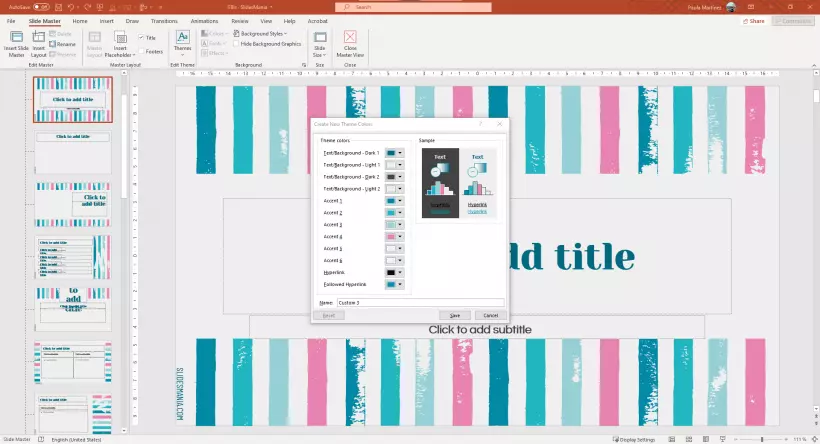
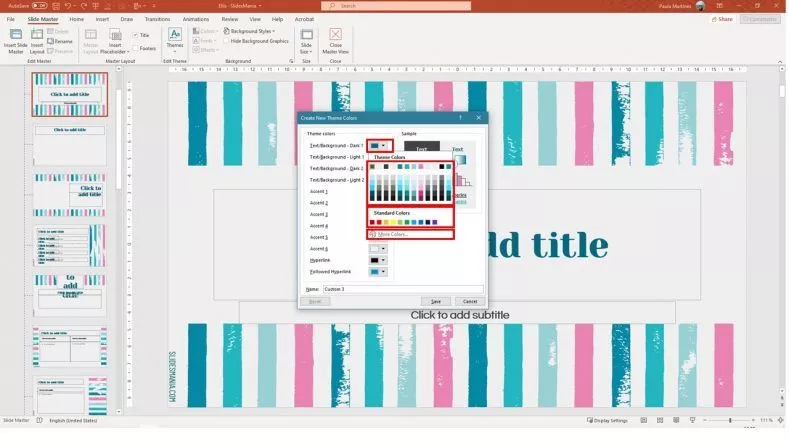
Click on any of the theme colors and a menu will open. Here you can choose to change it to any of the given theme colors, any of the standard colors, or any color you like. To access this last option, click on ‘More colors…’
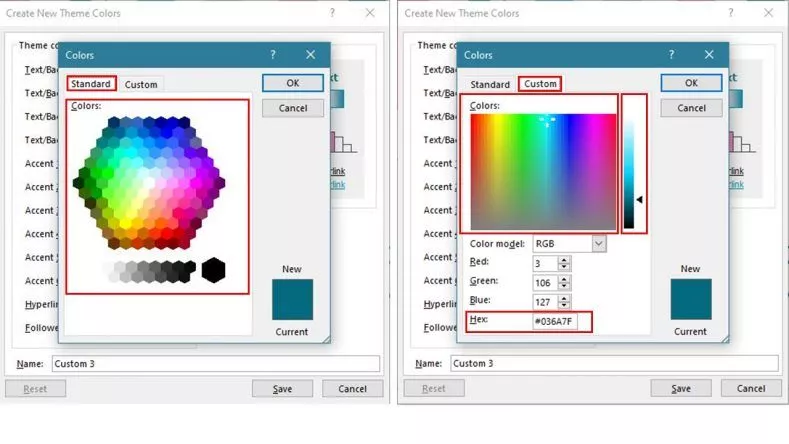
Here you can choose between Standard or Custom. If you choose 'Standard', simply click on the color you want and click OK, and if you choose 'Custom', you can select any of the colors and a specific hue, or use the RGB selectors or type/paste a HEX code . When you're done, click OK.
Repeat this for each color you want to change. Once this is done, close the view and you are all set!